How Alt + S Webpage Search Works in SuperCommands
Use Alt + S on an active webpage to search saved SuperCommands items and run page-aware commands like screenshots, image downloads, and table downloads.
Posted 1 month ago
Text ExpandersNotesLinksWebpage SearchDownload Tables
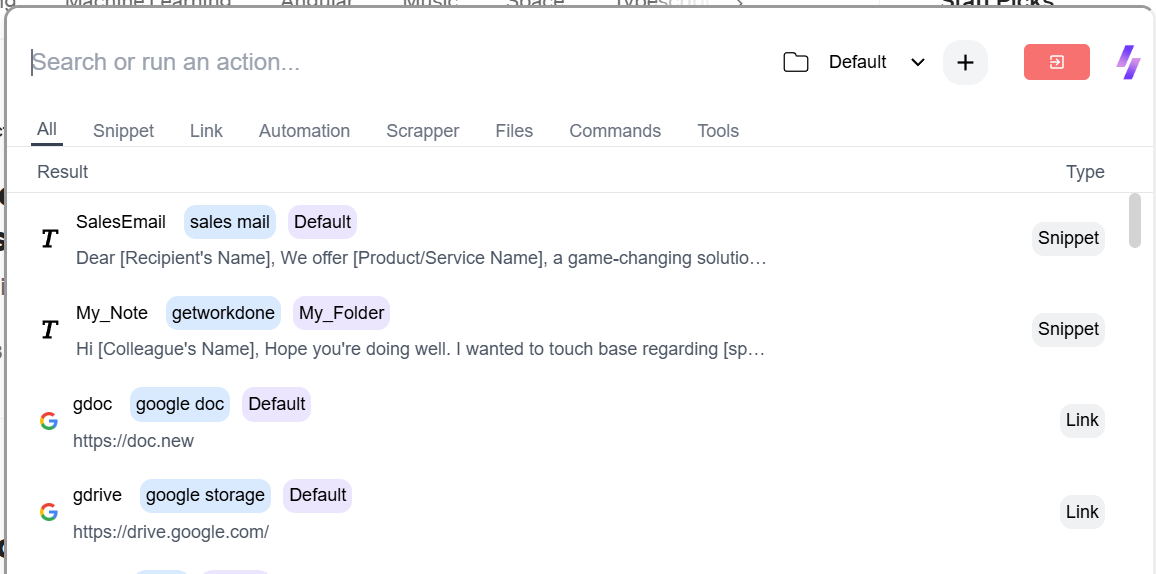
Alt + S opens SuperCommands search on top of the active webpage. From there, you can find saved SuperCommands objects or run commands that use the current page, tab, or browser window.
What Webpage Search Can Do
- Search SuperCommands: Find Notes, Links, Todos, Text Expanders, collections, bookmarks, commands, Chat Agents, and AI Prompts.
- Use page context: Run actions that need the current page URL, title, readable text, image resources, HTML tables, or visible tab capture.
- Manage tabs: Run commands such as mute tabs, unmute tabs, close duplicate tabs, or merge windows.
How To Use It
- Open the webpage you want SuperCommands to use as context.
- Press your configured Alt + S webpage-search shortcut.
- Type a normal query, or type
cfollowed by a space to browse commands. - Select the result and press Enter.

Some browser-internal or restricted pages may not expose normal page context, so page-aware commands can be unavailable there.